A Microsoft 365 migration is the process of moving an organization's users, email, files, applications, and other workloads from an existing environment into Microsoft 365.
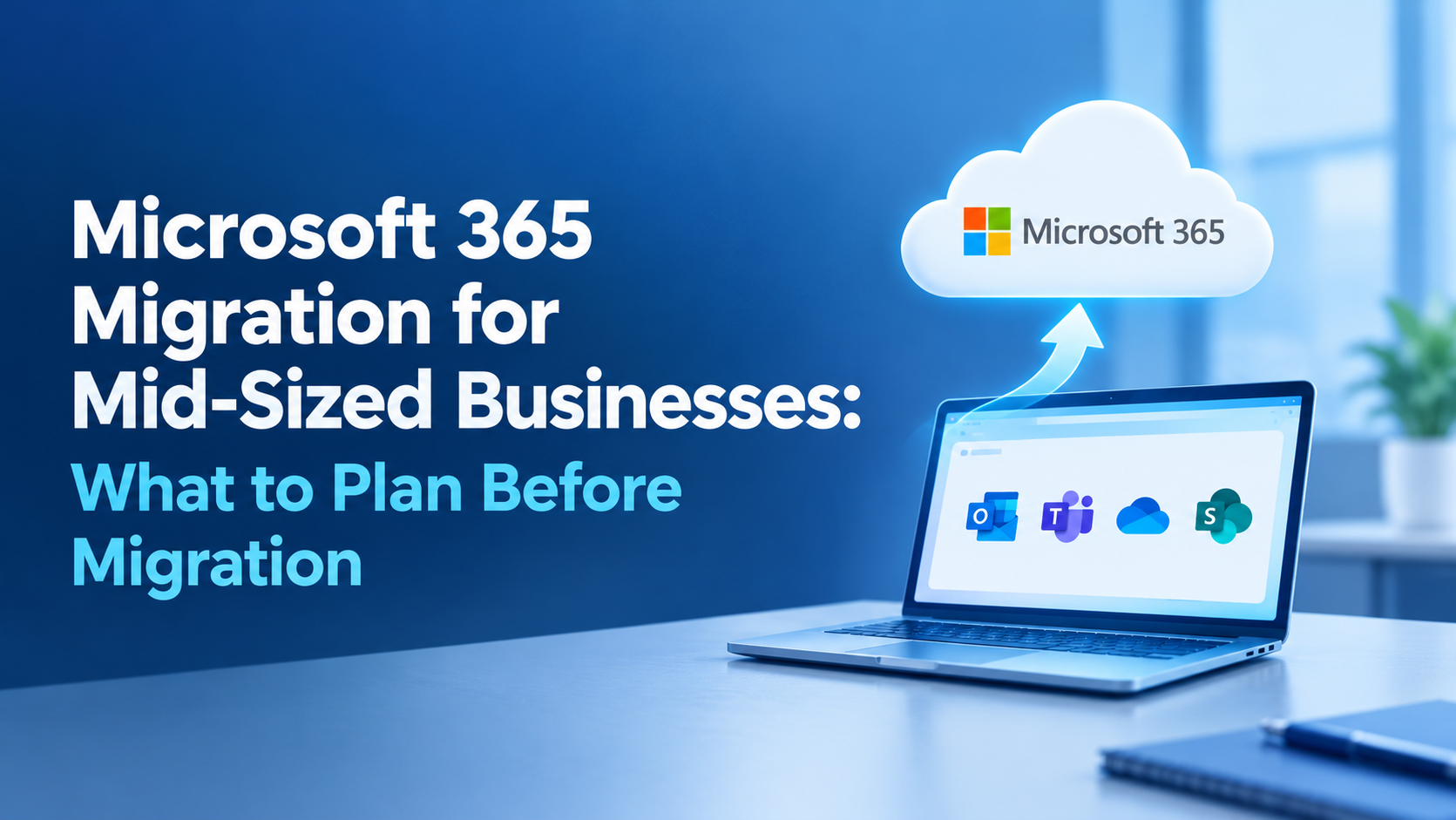
Microsoft 365 Migration for Mid-Sized Businesses: What to Plan Before Migration
Listen to this article
Moving to Microsoft 365 can help a mid-sized business modernize email, collaboration, file storage, security, and productivity. But a successful migration is not simply about moving mailboxes and files to the cloud.
A Microsoft 365 migration can affect user accounts, email, calendars, SharePoint, OneDrive, Teams, devices, applications, permissions, security policies, and business workflows. Microsoft recommends planning these areas before migration, including , file storage, Teams, devices, identity, and integrations.
For mid-sized businesses, the challenge is balancing migration speed with business continuity. Poor planning can lead to missing data, broken integrations, permission problems, unexpected downtime, and frustrated employees.
The good news is that most migration risks can be reduced by planning the environment before the first user or workload is moved.
Table of Contents
- What Is a Microsoft 365 Migration?
- Why Mid-Sized Businesses Need a Migration Plan
- What to Assess Before a Microsoft 365 Migration
- What Should Be Included in a Microsoft 365 Migration Plan?
- Microsoft 365 Licensing and Tenant Planning
- Identity and Access Planning
- Planning Email Migration
- Planning SharePoint and OneDrive Migration
- Planning Microsoft Teams Migration
- Security and Compliance Before Migration
- Migration Testing and Pilot Planning
- Choosing a Microsoft 365 Migration Strategy
- Common Microsoft 365 Migration Mistakes
- Microsoft 365 Migration Checklist for Mid-Sized Businesses
- How to Choose a Microsoft 365 Migration Service Provider
- What to Do After Microsoft 365 Migration
- Conclusion
What Is a Microsoft 365 Migration?
A Microsoft 365 migration is the process of moving an organization's users, data, applications, and workloads from an existing environment into Microsoft 365.
Depending on the business, the migration could involve moving from on-premises Exchange, another cloud platform, file servers, Google Workspace, another Microsoft 365 tenant, or a combination of systems.
Microsoft supports different migration scenarios, including external-platform migrations and tenant-to-tenant migrations.
A mid-sized business may migrate:
- Email and calendars
- Contacts
- OneDrive files
- SharePoint content
- Microsoft Teams data
- User accounts
- Groups
- Business applications
- Devices
- Security configurations
The scope depends on the company's existing infrastructure and its goals for Microsoft 365.
Why Mid-Sized Businesses Need a Migration Plan
A migration affects more than IT.
Employees depend on email, calendars, files, applications, and collaboration tools every day. If one of these systems stops working during migration, productivity can quickly suffer.
A migration plan helps the business identify what needs to move, what can be retired, what needs to be redesigned, and what should be tested before the final cutover.
Microsoft also recommends deciding whether an organization should move to Microsoft 365 all at once or in stages, depending on its environment and requirements.
For a mid-sized organization, planning should cover:
- Current infrastructure
- Users and workloads
- Data
- Security
- Applications
- Migration method
- Testing
- Employee communication
- Training
- Post-migration support
What to Assess Before a Microsoft 365 Migration
Before selecting migration tools or setting a cutover date, businesses should understand their existing environment.
Current Email Environment
Start by documenting the current email system.
Identify:
- Number of mailboxes
- Mailbox sizes
- Shared mailboxes
- Distribution lists
- Aliases
- Contacts
- Calendars
- Public folders
- Email archiving
- Mail flow rules
Microsoft provides several approaches for migrating email depending on the source environment and migration scenario.
File Storage and Documents
Identify where business files currently live.
They may be stored in:
- File servers
- Network drives
- Local computers
- SharePoint
- OneDrive
- Google Drive
- Dropbox
- Other cloud storage platforms
Microsoft recommends assessing file storage before migration and using appropriate migration tools for larger volumes of content.
Applications and Integrations
Business applications are one of the areas most likely to be overlooked.
Check systems such as:
Identify any system that sends email, reads files, uses authentication, or depends on the existing Microsoft environment.
Devices and Endpoints
Document the devices employees use to access Microsoft 365.
Consider:
- Windows PCs
- Macs
- Smartphones
- Tablets
- Company-managed devices
- Personal devices
- Office-based devices
- Remote workers
Microsoft recommends checking device requirements before deploying Microsoft 365 applications.
What Should Be Included in a Microsoft 365 Migration Plan?
A migration plan should explain what is moving, when it is moving, who is responsible, and how the organization will handle problems.
Migration Scope
Clearly define what is included.
For example:
- Exchange Online
- OneDrive
- SharePoint
- Teams
- User identities
- Devices
- Applications
- Security policies
A clearly defined scope prevents important workloads from being forgotten.
Migration Strategy
Decide whether the organization will migrate everything at once or in phases.
Microsoft supports both approaches, and the right choice depends on the organization's environment, workload dependencies, and business requirements.
Timeline and Milestones
Create a realistic timeline covering:
- Discovery
- Planning
- Tenant preparation
- Pilot migration
- Data migration
- User migration
- Cutover
- Validation
- Stabilization
Avoid setting the final migration date before understanding the environment.
Roles and Responsibilities
Assign clear owners for each migration activity.
For example:
- IT administrator
- Migration project manager
- Security team
- Department representatives
- Application owners
- External migration partner
- Executive sponsor
Risk and Rollback Planning
Every migration should have a plan for handling unexpected problems.
Define:
- Critical risks
- Recovery procedures
- Rollback conditions
- Backup requirements
- Escalation contacts
- Communication procedures
Microsoft 365 Licensing and Tenant Planning
Licensing should be addressed before users are migrated.
Choosing the Right Microsoft 365 Licenses
Review what employees actually need.
Different users may require different capabilities based on their roles, applications, security requirements, and collaboration needs.
Microsoft provides different business and enterprise licensing options, so organizations should map requirements to appropriate plans before migration.
Preparing the Microsoft 365 Tenant
Before migration, prepare the target environment.
This can include:
- Adding and verifying domains
- Creating users
- Assigning licenses
- Configuring administrators
- Setting security policies
- Preparing workloads
- Configuring required services
- Microsoft's setup guidance specifically recommends having user and domain information available before beginning the setup process.
Planning User and Admin Roles
Avoid giving every administrator unrestricted access.
Define appropriate roles and permissions for:
- Global administrators
- Exchange administrators
- SharePoint administrators
- Teams administrators
- Security administrators
- Help desk staff
Identity and Access Planning
Identity is one of the most important parts of a Microsoft 365 migration.
Active Directory and Microsoft Entra ID
If the company uses on-premises Active Directory, determine how identities will connect to Microsoft 365.
Microsoft supports integration between on-premises Active Directory and Microsoft 365 through Microsoft Entra Connect.
User Identity Mapping
Make sure users can be correctly matched between the existing environment and Microsoft 365.
Check:
- Usernames
- Email addresses
- UPNs
- Domains
- Groups
- Permissions
- Identity mapping becomes especially important during tenant-to-tenant migrations.
Authentication and Access Policies
Plan how employees will authenticate.
Consider:
- Multi-factor authentication
- Conditional access
- Password policies
- Device compliance
- Risk-based access
- Administrative access
Domain and DNS Planning
DNS changes can affect email and other services.
Document current DNS records and determine what changes are required for Microsoft 365.
Make sure the team knows who controls the domain and DNS environment before migration.
Planning Email Migration
Email is often the most business-critical workload.
Verify that every required mailbox has been accounted for.
Calendars and Contacts
Email migration should not focus only on messages.
Check calendars, contacts, meeting information, and other relevant mailbox data.
Email Routing
Plan how mail will flow during migration.
For phased migrations, email routing between the old and new environments may be required during the transition.
Email Downtime
Set expectations around possible disruption.
Microsoft notes that organizations moving their business email address to Microsoft 365 need to plan the transition of mail delivery to the new Microsoft 365 mailboxes.
Identifying Data to Move
Separate files into categories such as:
- Active business documents
- Archived information
- Duplicate files
- Personal files
- Sensitive data
- Data that can be retired
Not every file needs to be moved.
Cleaning Up Legacy Files
Migration is an opportunity to remove unnecessary content.
Before migration, identify:
- Duplicate files
- Outdated documents
- Orphaned folders
- Unused shares
- Old employee data
- Unnecessary archives
Permissions and Sharing
Review who currently has access to important files.
Then map those permissions to the Microsoft 365 environment.
Poor permission planning can result in users losing access or gaining access to information they should not see.
File Structure and Ownership
Decide where information should live.
For example:
- OneDrive for individual work
- SharePoint for team and organizational content
- Teams for collaboration around shared work
The goal should be a logical information architecture rather than simply recreating an old file server in the cloud.
Planning Microsoft Teams Migration
Teams can involve multiple types of content and collaboration.
Teams and Channels
Identify active Teams and channels and determine which ones should be migrated or recreated.
Remove obsolete Teams where appropriate.
Files and Collaboration
Team files are closely connected with SharePoint.
Migration planning should account for the relationship between Teams, SharePoint, and OneDrive.
External Users and Guests
Review external users and guest access.
Determine who still needs access and whether their permissions should change after migration.
Teams Adoption
Employees may need training on:
- Teams meetings
- Chat
- Channels
- File sharing
- Collaboration
- Notifications
Technology adoption should be part of the migration plan rather than an afterthought.
Security and Compliance Before Migration
Security should be designed before users begin working in the new environment.
Multi-Factor Authentication
MFA can help protect accounts from credential-based attacks.
Plan how MFA will be introduced and communicate the change to employees.
Data Protection
Identify sensitive business information and determine how it should be protected.
Consider:
- Sensitive documents
- Customer information
- Financial information
- Employee information
- Intellectual property
Access Controls
Use appropriate access policies based on users, devices, applications, and risk.
Do not assume that existing permissions should automatically be copied to the new environment.
Retention and Compliance
Determine what data needs to be retained and for how long.
Review applicable legal, regulatory, and internal requirements before migration.
Backup and Recovery
Migration is not the same as backup.
Determine how critical Microsoft 365 data will be protected and recovered if files are accidentally deleted, corrupted, or otherwise unavailable.
Migration Testing and Pilot Planning
Testing helps identify problems before they affect the entire organization.
Selecting Pilot Users
Choose a representative group of users from different departments.
Include users with different:
- Devices
- Applications
- Workflows
- Data requirements
- Access levels
Testing Data Migration
Confirm that migrated email, files, calendars, contacts, and other data are complete and accessible.
Testing Applications
Test applications that depend on email, authentication, file storage, or other Microsoft services.
This can include scanners, websites, accounting platforms, and internal applications.
Validating Permissions
Check that users can access what they need and cannot access what they should not.
Permission testing is especially important for SharePoint, OneDrive, and Teams.
Choosing a Microsoft 365 Migration Strategy
There is no single migration approach that works for every mid-sized business.
Big-Bang Migration
A big-bang migration moves users and workloads during a defined cutover period.
It can simplify the transition but requires strong preparation and testing because many users change environments at the same time.
Phased Migration
A phased migration moves users or departments in batches.
This can reduce risk and allow the team to learn from earlier migration groups.
Microsoft specifically supports staged migration approaches for organizations that want to adopt workloads gradually.
Hybrid Migration
Some businesses may need to operate parts of the existing environment alongside Microsoft 365 for a period.
This approach can be useful when the organization cannot move everything immediately, but it requires careful planning for identity, mail flow, permissions, and coexistence.
Common Microsoft 365 Migration Mistakes
Migrating Without an Inventory
If the team does not know what exists, it is easy to miss mailboxes, files, applications, devices, or dependencies.
Ignoring Legacy Data
Moving every old file without reviewing it can create unnecessary storage, security, and management problems.
Forgetting Business Applications
A migration can appear successful while an important application silently stops sending emails or accessing required resources.
Underestimating User Training
Employees need to understand changes to Outlook, Teams, SharePoint, OneDrive, authentication, and other tools.
Skipping Testing
Skipping a pilot may save time initially but can create much larger problems during cutover.
Retiring the Old Environment Too Early
Do not immediately shut down the old environment.
Keep it available until the migration team confirms that required data, applications, permissions, and workflows are working correctly.
Microsoft 365 Migration Checklist for Mid-Sized Businesses
Before migration, confirm that the following areas have been reviewed:
Discovery Checklist
- Users and groups inventoried
- Mailboxes documented
- Shared mailboxes identified
- File locations documented
- Applications identified
- Devices reviewed
- DNS access confirmed
- Current security controls documented
Planning Checklist
- Migration scope defined
- Migration strategy selected
- Timeline created
- Roles assigned
- Risks documented
- Rollback plan prepared
- Communication plan created
Technical Checklist
- Microsoft 365 tenant prepared
- Licenses assigned
- Domains verified
- Identity strategy confirmed
- DNS changes planned
- Security policies configured
- Migration tools selected
- Pilot users identified
Testing Checklist
- Email migration tested
- File migration tested
- Teams tested
- Application integrations tested
- Permissions validated
- Devices tested
- User sign-in tested
- Recovery procedures reviewed
Post-Migration Checklist
- Mail flow validated
- Files verified
- Permissions checked
- Applications tested
- User issues monitored
- Security controls reviewed
- Migration results documented
- Legacy environment retirement approved
How to Choose a Microsoft 365 Migration Service Provider
Some mid-sized businesses have enough internal IT resources to manage migration themselves. Others may benefit from an experienced migration partner, especially when the environment includes large data volumes, complex integrations, hybrid systems, or limited internal resources.
Microsoft itself notes that organizations with advanced requirements or large amounts of data may benefit from an experienced partner.
Ask About Migration Experience
Look for experience with environments similar to yours.
Ask about:
- Number of users migrated
- Microsoft workloads handled
- Source platforms
- Complex migrations
- Industry experience
Ask How They Handle Security
The provider should explain how they protect credentials, data, permissions, and access during migration.
Ask About Testing
A reliable provider should have a clear pilot and validation process.
Ask About Downtime
Understand when users may experience disruption and how the provider minimizes it.
Ask About Post-Migration Support
Migration does not end at cutover.
Ask how the provider handles:
- User issues
- Missing data
- Permission problems
- Application issues
- Configuration problems
- Stabilization
What to Do After Microsoft 365 Migration
Once migration is complete, the organization should enter a stabilization period.
Monitor User Issues
Track help desk requests and identify recurring problems.
Validate Data and Workloads
Continue checking email, files, Teams, applications, permissions, and security settings.
Review Security
Confirm that MFA, access controls, retention policies, and other security configurations are working as expected.
Optimize the Microsoft 365 Environment
Once the migration is stable, businesses can focus on improving:
- Collaboration
- File organization
- Security
- Automation
- Governance
- Microsoft Teams adoption
- Productivity
The migration should be viewed as the beginning of the Microsoft 365 journey, not the end.
Conclusion
A Microsoft 365 migration for a mid-sized business requires more than moving email and files to the cloud.
The organization needs to understand its current environment, define the migration scope, prepare identities and licenses, plan email and file migration, review security, test applications, prepare employees, and establish a clear cutover and recovery strategy.
Microsoft's current migration guidance emphasizes choosing the right migration path based on the scenario, workloads, identity requirements, dependencies, licensing, and timeline.
The most successful migrations are usually the ones where the planning happens before the migration tools are launched.
For mid-sized businesses, a structured approach can reduce disruption, protect important business data, and create a stronger foundation for using Microsoft 365 after migration.
Ready to take the next step?
Frequently Asked Questions
The timeline depends on the number of users, mailbox sizes, file volumes, workloads, applications, migration method, and environment complexity. A detailed assessment should be completed before setting a final migration date.
Businesses should inventory users, mailboxes, files, applications, devices, permissions, and domains; choose licenses; prepare the Microsoft 365 tenant; plan security; select a migration strategy; and conduct pilot testing.
Not necessarily. A phased migration may reduce risk for organizations with complex environments, while a single cutover can work for simpler environments. The right approach depends on workload dependencies and business requirements.
Depending on the source environment and migration method, organizations can migrate email, calendars, contacts, OneDrive files, SharePoint content, Teams-related content, and other supported workloads. Microsoft provides different migration paths for different scenarios.
Not always. Businesses with experienced internal IT teams and relatively simple environments may manage migration internally. Organizations with complex environments, large data volumes, hybrid systems, or limited resources may benefit from a migration partner.
One of the biggest mistakes is starting the migration without understanding the existing environment. Missing applications, permissions, data, dependencies, or user requirements can create problems during and after migration.